
Unmasking Google's Hidden Automation: A Guide to Regaining Control Over Your Ads
GOOGLE ADS
6/12/20242 min read


We're all familiar with Google's penchant for stealthily enabling automation features. It defaults to switching them on and tucks away the option to switch them off. Now, with the new design, there are three key areas where you'll need to navigate to deactivate Google's automated assets, seller ratings, and other features that Google pushes automatically.
Auto-Apply
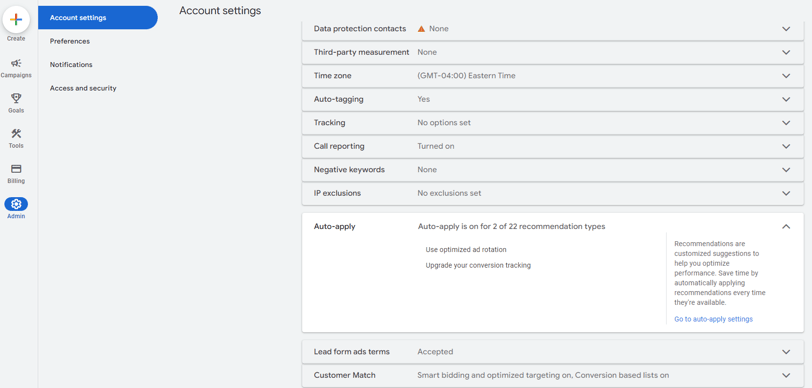
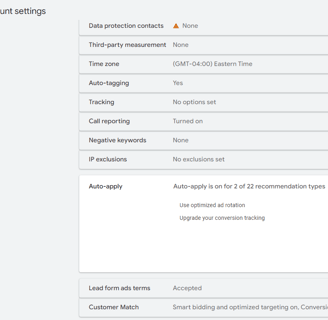
Admin > Account Settings > Auto-Apply:
This is the set of options that allows Google not only to craft new headlines or descriptions for you, but also to add new keywords, change their match type to Broad, change your bid strategies, and even change your target CPA. By enabling these features, you're pretty much giving away about 80% of your account's control to Google.
We recommend deactivating these completely. Alternatively, you can head to “Recommendations > Auto-Apply” to selectively allow Google control over certain aspects while retaining control over others.
Automatically Created Assets
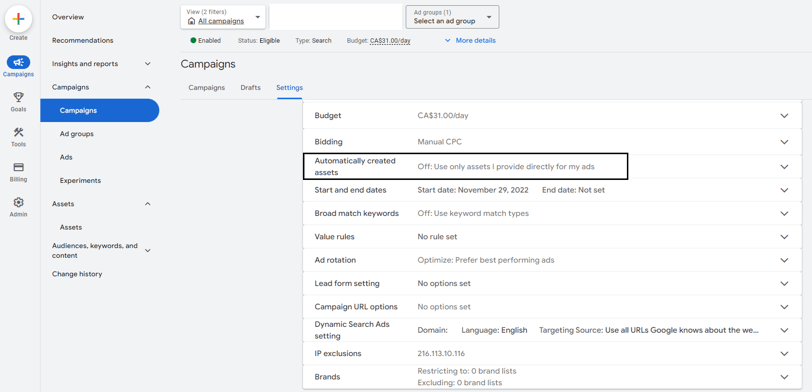
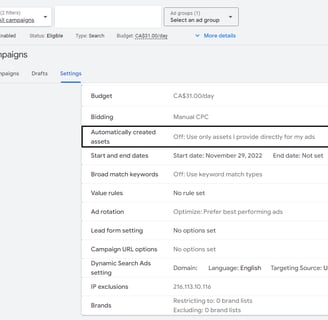
Campaign > Campaign Settings > Automatically created assets:
This area specifically concerns the headlines and descriptions that Google generates for you. Although Google uses content from your landing page, domain, and ads, it's best practice to disable this feature and ensure your ads are crafted and reviewed by humans.
The inconvenience here is that you'll need to deactivate the feature for each campaign separately, which can be quite a daunting task for large accounts.
To avoid this, download the latest version of the Google Ads Editor, which will enable you to select all the campaigns and deselect the feature in 2 clicks.
Automated Assets
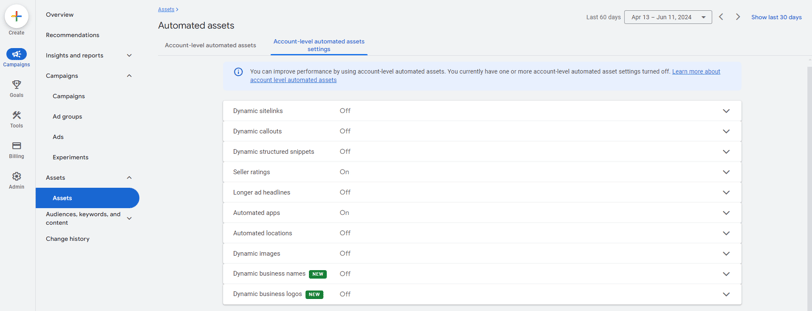
Campaign > Assets > More (represented by three dots) > Account-level automated assets > More (again, represented by three dots) > Advanced settings:
This is perhaps the most stealthy of all. I don’t have any logical explanation as to why Google is burying it here, except perhaps to prevent us from discovering it easily.
With this option, there are around ten items that we recommend deactivating. These include "dynamic sitelinks" (basic sitelinks without any description), "dynamic callouts", "dynamic images", and the recently introduced "dynamic business name" and "dynamic business logo". Personally, I keep "seller ratings" and "automated apps" and deactivate the rest.
Taking control of your Google Ads account requires navigating through a maze of hidden settings and automated features. By following the steps outlined in this post, you can ensure that your ads are crafted with precision and oversight, maintaining the quality and effectiveness of your campaigns.